NonStop RPM Wizard - Install
|
|
NonStop RPM Wizard - Install |
| Home | Examples | FAQs | Documents | Download | History | Support |
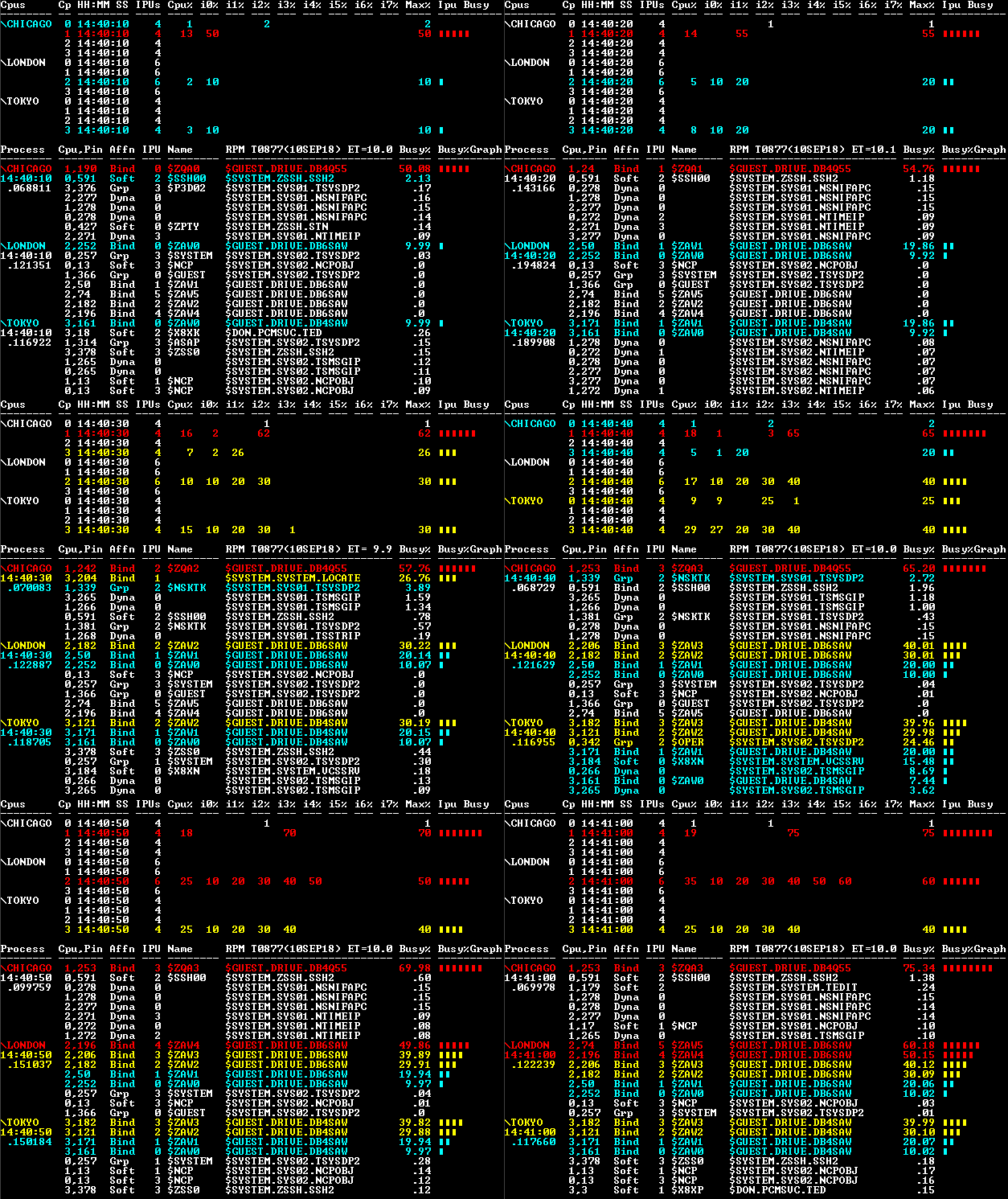
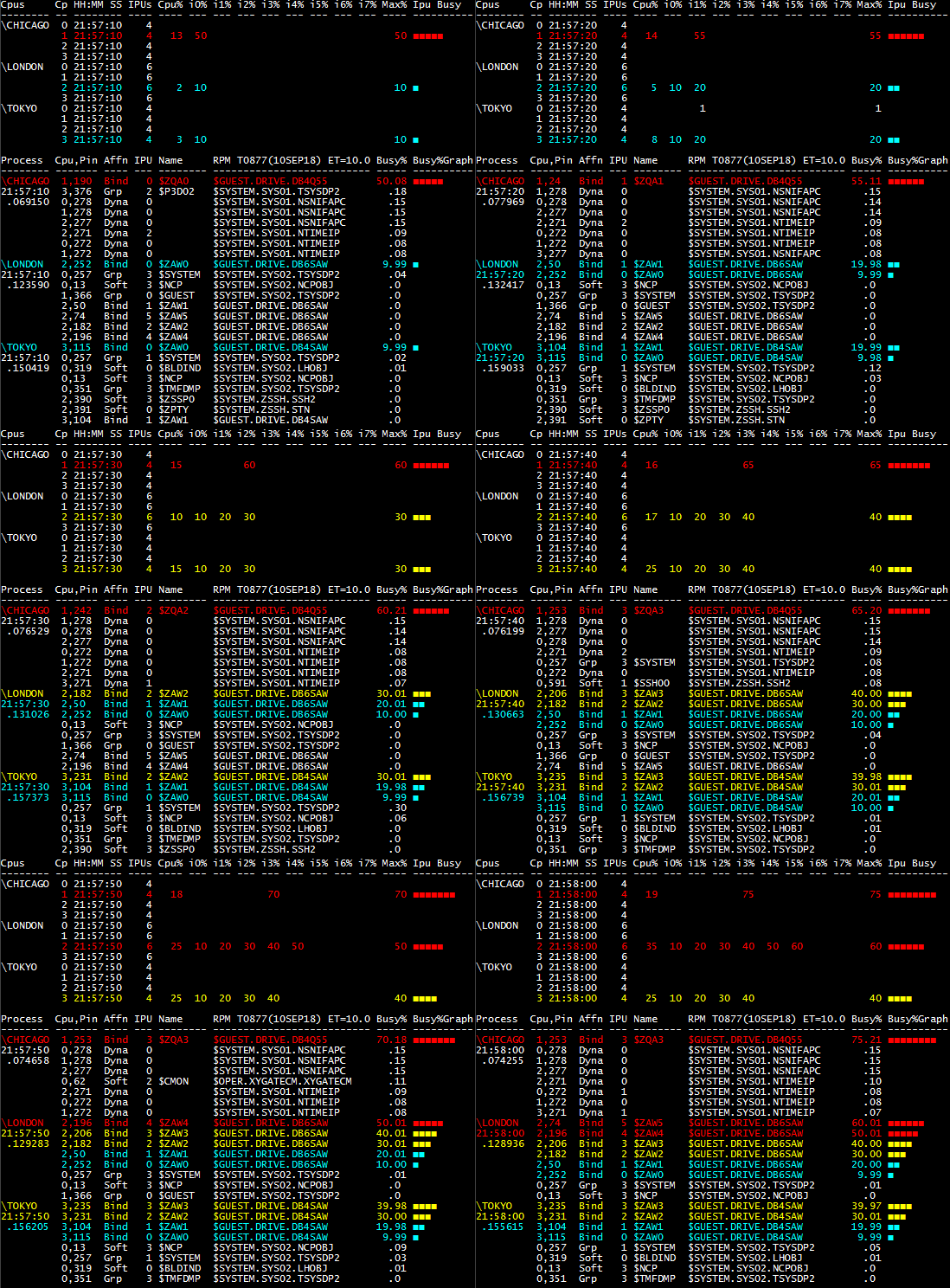
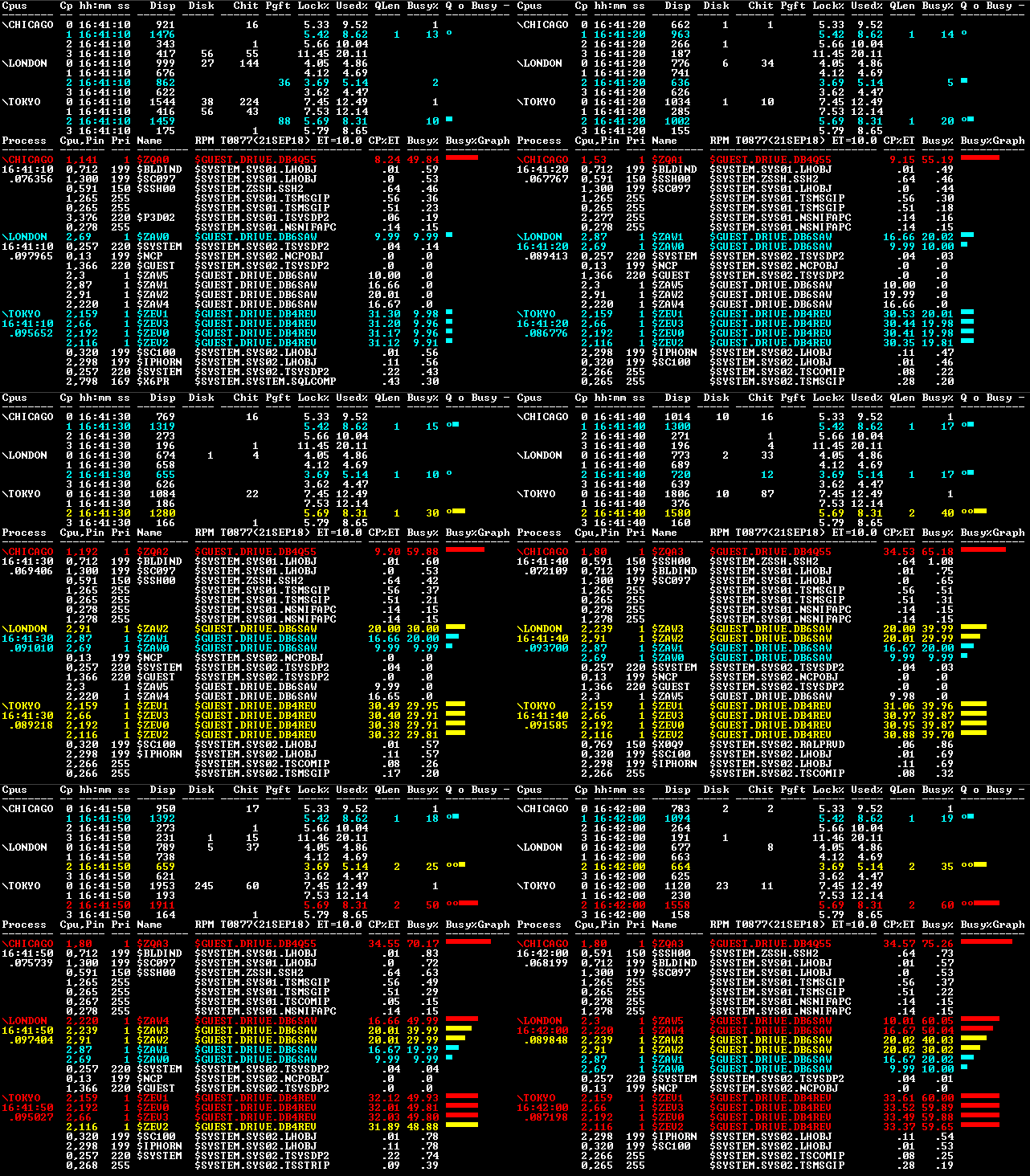
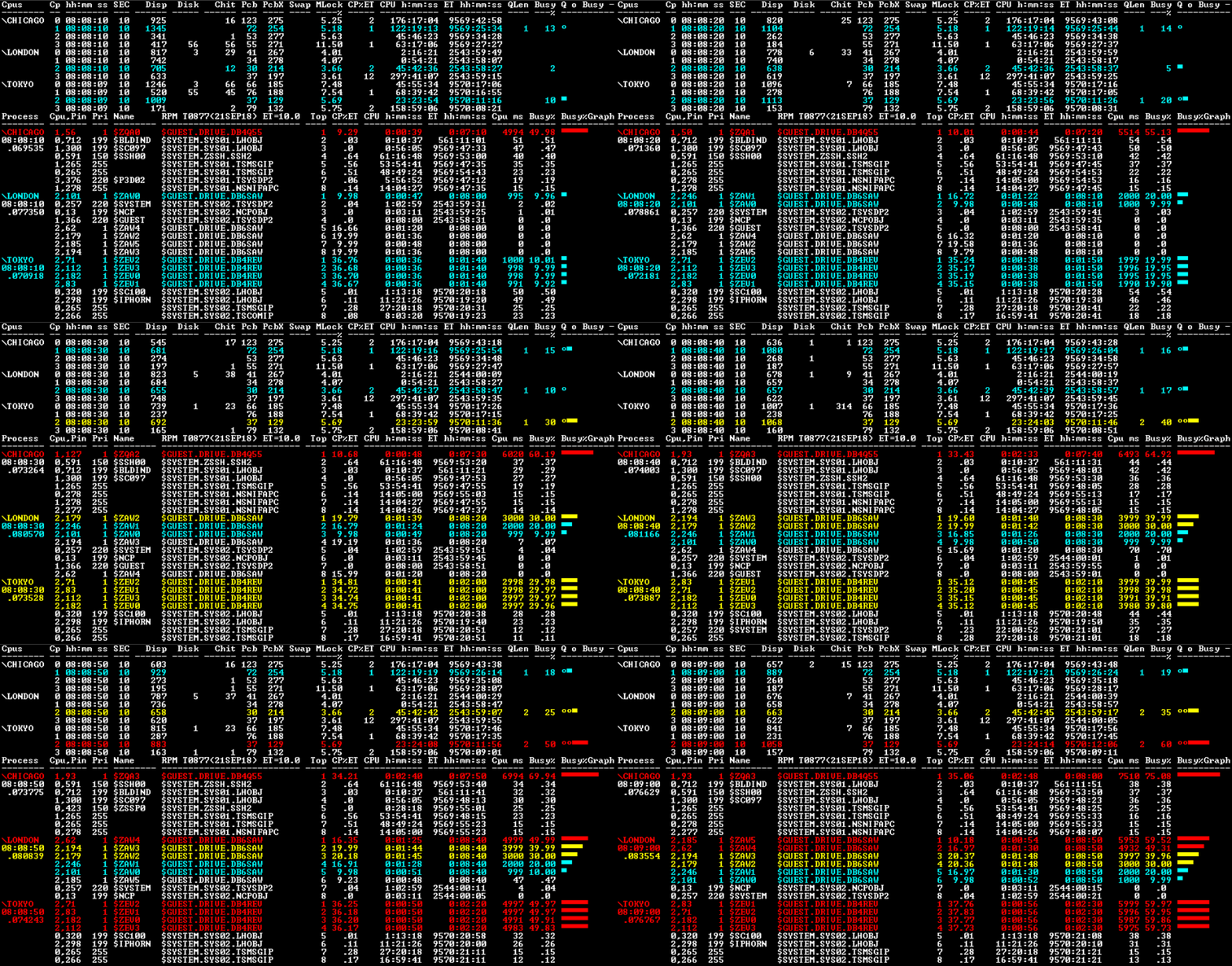
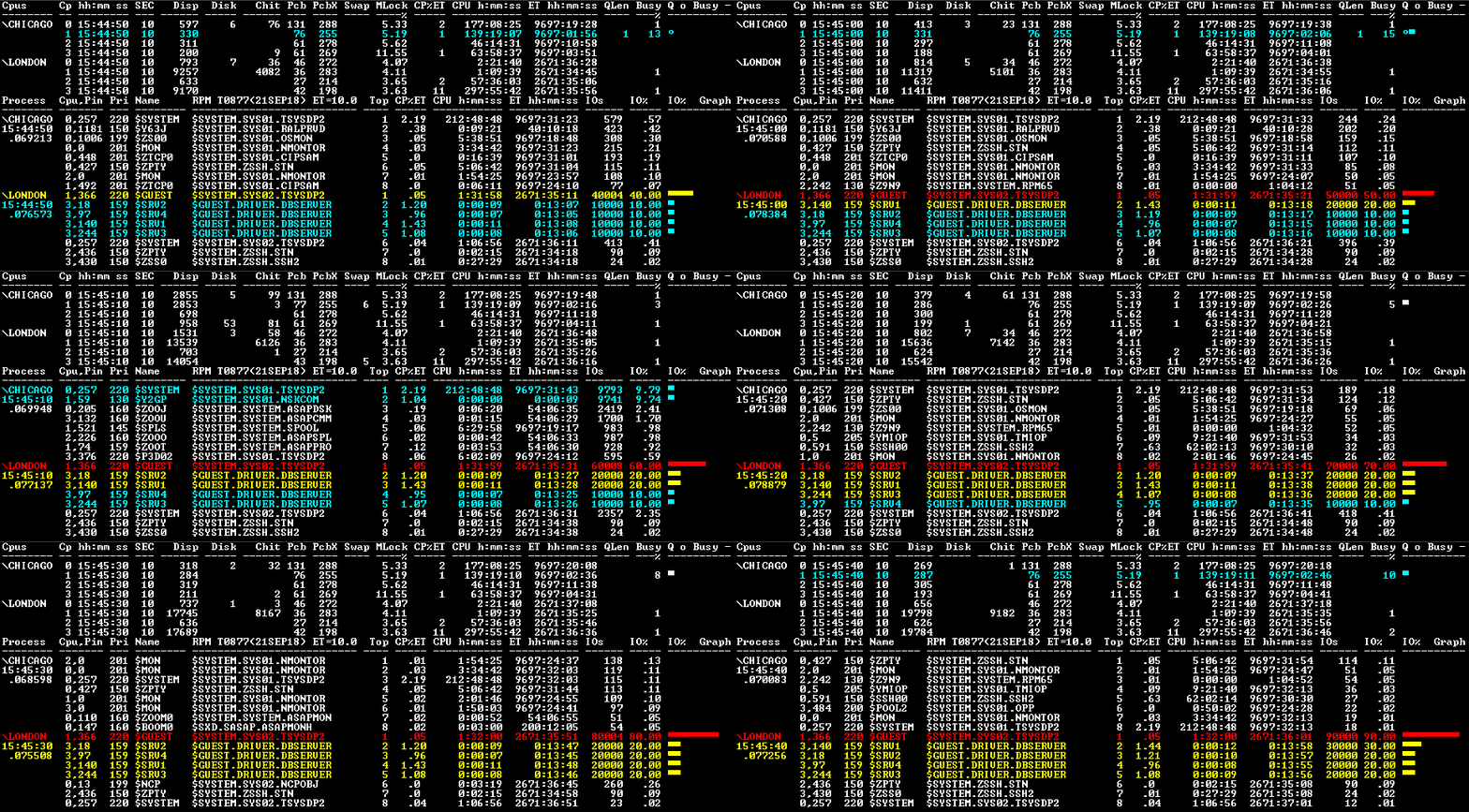
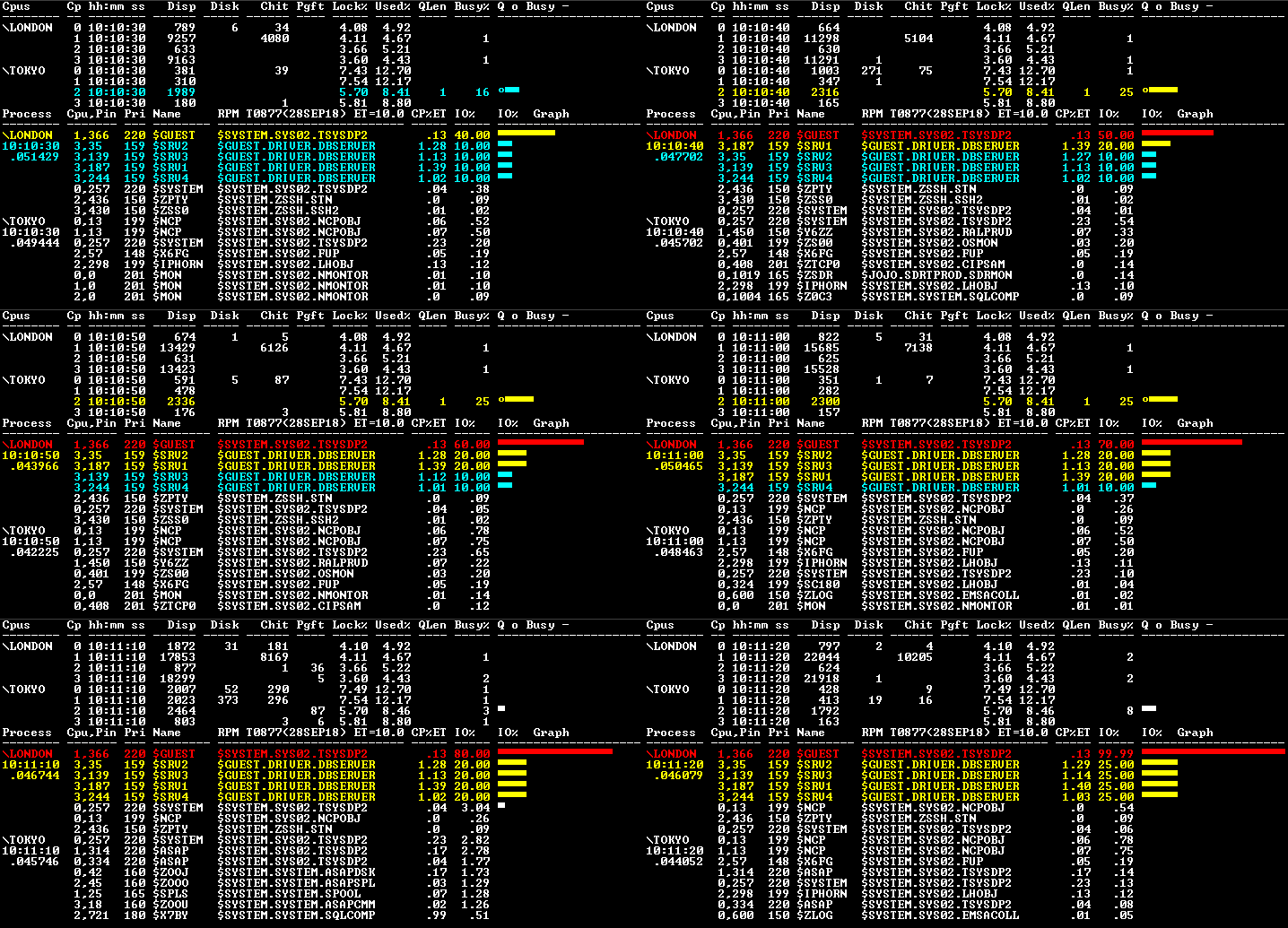
This page explains how to use RPM Wizard to obtain reports such as these ...

The example below explains how to use the RPM Wizard CONFIG,
INSTALL, RUN commands.
To get started, enter RUN RPMWIZ from a TACL prompt as shown below:
$DATA RPM15 1>
VOLUME RPM15
$DATA RPM15 2> RUN RPMWIZ
===============================================================================
== HPE RPMWIZ - RPM Wizard - T0877V01.AAH (21SEP2018) http://www.NonstopRPM.com
===============================================================================
== RPMWIZ - RPM wizard is used to configure, install, and update RPM files.
== To install RPM for the first time, enter CONFIG, then SAVE, then INSTALL.
== To update an existing RPM with new object files, enter USE, then INSTALL.
==
== * CONFIG/USE - Creates/Uses RPM device configuration files. If you choose
== CONFIG the wizard interviews you and based your answers creates TTY,
== VT100, T6530 device config files for RPM, RPMVT, and RPM65 objects.
== If you choose USE the wizard uses your existing configuration files.
==
== * INSTALL - For new install enter CONFIG and SAVE commands for each device
== type you'll use with RPM. To update RPM objects only, enter USE to reuse
== existing RPM configuration. Then to install/update RPM on $SYSTEM.SYSTEM
== enter the INSTALL command. Once RPM is installed you can enter CONFIG and
== SAVE commands to create new configuration files.
==
== NOTES: Defaults are bracketed. For example: 10, 20, [100]? (100 is default)
== CTL-Y escapes a prompt, and continues to next-level in RPMWIZ.
===============================================================================
CONFIG | SAVE | USE | INSTALL | RUN | EXIT >
The CONFIG command is used to
configure and build the configuration files for the T6530, VT100, and TTY
RPM programs. To get started configuring your environment, enter CONFIG at the
prompt shown below:
CONFIG | SAVE | USE | INSTALL | RUN | EXIT >
CONFIG
------------------------------------------------------------------------------
-- Specify RPM device TYPE ?
------------------------------------------------------------------------------
T6530 - Builds Rpm65CNF config file used by the RPM65 (T6530) object
file.
RPM65 now provides color
graphs and secure communication on T6530.
RPMWIZ now provides setup
for colors, graphs, and MrWin6530 fonts.
To use RPM from a T6530
device choose this option, follow prompts,
then
run RPM65 from TACL/OSH.
VT100 - Builds RpmVTCNF config file used by the RPMVT (VT100) object
file.
VT100 support is present
in all Windows and Linux OS. For example,
you can now securely run
RPMVT
in Windows with NonStop SSL TELNET.
VT100 support is built
into Windows, provides consistent graphics,
color-coding, and is
secure.
TTY - Builds RpmCNF config file used by the RPM (TTY) object
file.
Use this option if you do
not want graphics or color display,
or if you want to output
RPM data to a file: RPM / OUT file /
Enter TYPE of device VT100 | T6530 | TTY :
T6530
------------------------------------------------------------------------------
-- T6530 selected. Create MR-Win6530 PROFILE with following settings...
------------------------------------------------------------------------------
Create MR-Win6530 PROFILE using these MR-Win6530 menu options:
1) File.. New Profile.. T6530
2) Options.. Profile... Title: RPM
3) Options.. Environment.. View.. Scale to Fit: OFF
4) Options.. Communication.. Configure per site
5) Options.. Terminal.. Screen Format: 132 x 54
6) Options.. Terminal.. Maximum Pages: 2 or 3
7) Options.. Attributes..
Map Attribute to.. TextColor BackColor RPM Alert
------------------ --------- --------- ---------
none
WHITE Black none
Reverse Dim
CYAN Black INFO
Reverse Dim Blink YELLOW Black WARNING
Reverse
RED Black CRITICAL
8) Options.. Fonts.. Screen Change..
For graphic graph Select one of the
following in MR-Win6530:
Options.. Fonts.. TERMINAL
if font present in East/West locale
Options.. Fonts.. FIXEDSYS if font present in a Western locale
If you did not set TERMINAL/FIXEDSYS in MR-Win6530, enter ANY.
Enter FONT you set in MR-Win6530: TERMINAL/FIXEDSYS/[ANY]:
TERMINAL
------------------------------------------------------------------------------
-- Specify RPM Sample RATE ?
------------------------------------------------------------------------------
The sample RATE is in seconds. RATE determines how frequently RPM samples
Cpus and Processes and how often it displays updates. While RPM is capable
of extremely fast sampling down to 1 second, it can be more useful to pick
an update RATE that is a little slower so that information on the screen is
less time variable. For example a value of 10 seconds can be a better value.
Enter RATE interval in seconds 2, 3, 6, [10], .. :
10
------------------------------------------------------------------------------
-- Specify RPM process ENTRIES ?
------------------------------------------------------------------------------
The ENTRIES option indicates the maximum number of busy processes displayed
per Cpu or Node. For example ENTRIES 3 produces a report with the busiest 3
processes on each node as shown in the example output below:
Process Cpu,Pin Busy% Name RPM Programs ET=10.0
Top Pri User
-------- ------- ----- -------- -------------------------- --- --- -------
\CHICAGO 0,331 97.94 $LOOP /Projects/Looper/Looper
1 1 66,32
16:09:10 3,32 62.56 $SPIN $DATA.MMSPIN.SPIN
2 1 66,1
2,271
.76 $HIT $SYSTEM.SYS03.TSYSDP2
3 220 255,255
\LONDON 3,35 89.21 $SPI1 $DATA.MMSPIN.SPIN
1 1 66,1
16:09:10 1,31 .17 $ZNS1
$SYSTEM.SYS00.SCP
2 168 255,255
1,107
.17 $ZNES $SYSTEM.SYS00.SCP
3 168 255,255
\TOKYO 0,294 1.82 $SQL
$SYSTEM.SYS00.TSYSDP2 1 220 255,255
18:09:10 1,252 1.21 $ZOOL $SYSTEM.SYSTEM.ASAPFIL
2 160 255,255
1,0
.90 $MON $SYSTEM.SYS00.OSIMAGE
3 201 255,255
Enter ENTRIES to display per Cpu or Node [3], 5, 10, ... :
8
------------------------------------------------------------------------------
-- Specify the REPORT that you want: PROCESS, CPU, or ZOOM report ?
------------------------------------------------------------------------------
RPM can display many different types of real-time REPORTs.
Please choose one of the following categories of REPORT codes: P | C | Z
C - CPU Report only CPU statistics (less often used)
P - PROCESS Report only Busiest PROCESSes (sometimes used)
Z - ZOOM Report both CPU and PROCESS stats (most often used)
Hints about which REPORT class you might want:
TTY users most often choose - P
T6530 users most often choose - Z
VT100 users most often choose - Z
Enter report P | [Z] : Z
------------------------------------------------------------------------------
-- Specify whether you want IPU busy statistics ?
------------------------------------------------------------------------------
RPM can display IPU information in CPU and PROCESS reports.
IPU information is useful for understanding CPU performance.
If you want IPU stats in CPU and PROCESS reports, enter Y below.
If you want CPU stats in CPU and PROCESS reports, enter N below.
Enter Y if you want IPU stats in reports Y/[N] : Y
-------------------------------------------------------------------------------
-- Specify whether you want Process statistics displayed by CPU or NODE ?
-------------------------------------------------------------------------------
RPM can sort busy process statistics by CPU or by NODE. Generally by NODE is
the most useful. But in some cases sort by CPU may be useful especially when
configurations have a limited number of Cpus and Nodes.
Enter whether you want to sort by CPU or [NODE] :
NODE
-------------------------------------------------------------------------------
-- Specify whether you want GRAPHs included with CPU, PROCESS, ZOOM reports ?
-------------------------------------------------------------------------------
RPM can provide GRAPHs in CPU, PROCESS, and ZOOM reports. Graphs are very
useful for analyzing various reports including CPU, IPU, PB, ByItem reports.
However in some cases you might not want a GRAPH displayed. If you always
want graphs shown select Y for yes, if you do not always want graphs shown
select N for no.
If you say N you can manually add GRAPH option to CPU, PB, ZOOM commands.
If you say Y GRAPHs will always be displaed unless you enter SET GRAPH OFF.
Enter Y if you always want GRAPHs displayed [Y]/N : Y
-------------------------------------------------------------------------------
-- Specify whether you would like time-of-day in microseconds (USEC) displayed?
-------------------------------------------------------------------------------
RPM can display the time-of-day in microseconds for stats from each node.
This can be useful when analyzing overall RPM timing and/or the time-of-day
synchronization between nodes.
Enter whether you want USEC time displayed Y/[N] :
N
-------------------------------------------------------------------------------
-- Specify whether you want Cpu or Process objects suppressed based on %BUSY ?
-------------------------------------------------------------------------------
RPM can filter or suppress the display of Cpu or Process objects that do not
meet a certain %BUSY threshold beyond the max ENTRIES option specified above.
This is an advanced feature and not usually recommended. The value of zero
%Busy turns off this feature and is the default recommended value below.
Specify %BUSY = 0 To NOT filter Cpu or Process objects.
Specify %BUSY > 0 To filter the Cpu or Process objects.
Enter %BUSY threshold value [0] : 0
------------------------------------------------------------------------------
-- Specify %BUSY values for Informative, Warning, and Critical COLOR alerts ?
-- Blue Yellow Red
------------------------------------------------------------------------------
RPM can color highlight CPU and PROCESS objects with %busy values over
three different threshold values. These color alert values are called:
INFO - Busy% threshold value for informative alert (BLUE on VT100 devices)
1% is the default value for this alert.
WARN - Busy% threshold value for warning alert (YELLOW on VT100 devices)
10% is the default value for this alert.
CRIT - Busy% threshold value for critical alert (RED on VT100 devices)
50% is the default value for this alert.
Enter INFO Busy% threshold value for INFO [1] :
1
Enter WARN Busy% threshold value for WARN [10] :
10
Enter CRIT Busy% threshold value for CRIT [50] :
50
------------------------------------------------------------------------------
-- Specify NODES to monitor ?
------------------------------------------------------------------------------
RPM can monitor a single CPU, all CPUs in a node, or an entire list of nodes.
Please specify "E" to ENTER nodes, or "U" to USE nodes in existing RPMCNF file.
E - ENTER a list of node names you want to monitor by typing them in, or
U - USE the list of nodes in RPMCNF file on $SYSTEM.SYSTEM or default subvol.
Please specify "E" for ENTER, or "U" for USE [E]/U ? E
Enter nodes you want to monitor one at a time,
once you have ADD-ed all nodes to monitor,
you then terminate ADD mode by entering "//" or <null>
ADD \sysname ? \CHICAGO
ADD \sysname ? \LONDON
ADD \sysname ? \TOKYO
ADD \sysname ?
!======================================================
!== RPM Config created by RPMWIZ - 18/09/12 12:00:34
!======================================================
SET TERM T6530
SET RATE 10
SET ENTRIES 10
SET SORT BYNODE
SET GRAPH ON
SET X T6530=TERMoBar
SET USEC OFF
SET BUSY 0
SET CRIT 50
SET WARN 10
SET INFO 1
ADD \CHICAGO
ADD \LONDON
ADD \TOKYO
ZOO \*
!======================================================
SAVE to $DATA.RPM15.RPM65CNF Y/N ? Y
File $DATA.RPM15.RPM65CNF exists. Replace existing file Y/N ? Y
$DATA.RPM15.RPM65CNF save started.
$DATA.RPM15.RPM65CNF saved.
Once you've used the CONFIG
command to configure and build configuration files you can tell
RPM Wizard to install RPM as shown below:
CONFIG | SAVE | USE | INSTALL | RUN | EXIT >
INSTALL
Confirm RPM Source Distribution Volume (DSV) = $DATA.RPM15 Y/N ? Y
=====================================================================
RPM INSTALL started: 18/09/05 12:01:45
=====================================================================
12:01:45 ------------->
INSTALL \CHICAGO <------------
FUP DUP $DATA.RPM15.RPM , \CHICAGO.$SYSTEM.SYSTEM.RPM
, purge,sourcedate
FUP DUP $DATA.RPM15.RPM , \CHICAGO.$SYSTEM.SYSTEM.RPMVT
, purge,sourcedate
FUP DUP $DATA.RPM15.RPM ,
\CHICAGO.$SYSTEM.SYSTEM.RPM65 , purge,sourcedate
FUP DUP $DATA.RPM15.RPMWIZ , \CHICAGO.$SYSTEM.SYSTEM.*
, purge,sourcedate
FUP DUP $DATA.RPM15.RPMWIZEE , \CHICAGO.$SYSTEM.SYSTEM.*
, purge,sourcedate
\CHICAGO.$SYSTEM.SYSTEM.RPMCNF exists. Do you want to overlay all *CNF files Y/N ?
N
FUP SECURE \CHICAGO.$SYSTEM.SYSTEM.RPM ,nnnn
FUP SECURE \CHICAGO.$SYSTEM.SYSTEM.RPMVT ,nnnn
FUP SECURE \CHICAGO.$SYSTEM.SYSTEM.RPM65 ,nnnn
FUP SECURE \CHICAGO.$SYSTEM.SYSTEM.RPMWIZ ,nnnn
FUP SECURE \CHICAGO.$SYSTEM.SYSTEM.RPMWIZEE ,nnnn
FUP SECURE \CHICAGO.$SYSTEM.SYSTEM.RPMCNF ,nnnn
FUP SECURE \CHICAGO.$SYSTEM.SYSTEM.RPMVTCNF ,nnnn
FUP SECURE \CHICAGO.$SYSTEM.SYSTEM.RPM65CNF ,nnnn
12:02:05 ------------->
INSTALL \LONDON <------------
FUP DUP $DATA.RPM15.RPM , \LONDON.$SYSTEM.SYSTEM.RPM
, purge,sourcedate
FUP DUP $DATA.RPM15.RPM , \LONDON.$SYSTEM.SYSTEM.RPMVT
, purge,sourcedate
FUP DUP $DATA.RPM15.RPM ,
\LONDON.$SYSTEM.SYSTEM.RPM65 , purge,sourcedate
FUP DUP $DATA.RPM15.RPMWIZ , \LONDON.$SYSTEM.SYSTEM.*
, purge,sourcedate
FUP DUP $DATA.RPM15.RPMWIZEE , \LONDON.$SYSTEM.SYSTEM.*
, purge,sourcedate
FUP SECURE \LONDON.$SYSTEM.SYSTEM.RPM ,nnnn
FUP SECURE \LONDON.$SYSTEM.SYSTEM.RPMVT ,nnnn
FUP SECURE \LONDON.$SYSTEM.SYSTEM.RPM65 ,nnnn
FUP SECURE \LONDON.$SYSTEM.SYSTEM.RPMWIZ ,nnnn
FUP SECURE \LONDON.$SYSTEM.SYSTEM.RPMWIZEE ,nnnn
FUP SECURE \LONDON.$SYSTEM.SYSTEM.RPMCNF ,nnnn
FUP SECURE \LONDON.$SYSTEM.SYSTEM.RPMVTCNF ,nnnn
FUP SECURE \LONDON.$SYSTEM.SYSTEM.RPM65CNF ,nnnn
12:02:25 ------------->
INSTALL \TOKYO <-------------
FUP DUP $DATA.RPM15.RPM , \TOKYO.$SYSTEM.SYSTEM.RPM
, purge,sourcedate
FUP DUP $DATA.RPM15.RPM , \TOKYO.$SYSTEM.SYSTEM.RPMVT
, purge,sourcedate
FUP DUP $DATA.RPM15.RPM ,
\TOKYO.$SYSTEM.SYSTEM.RPM65 , purge,sourcedate
FUP DUP $DATA.RPM15.RPMWIZ , \TOKYO.$SYSTEM.SYSTEM.*
, purge,sourcedate
FUP DUP $DATA.RPM15.RPMWIZEE , \TOKYO.$SYSTEM.SYSTEM.* ,
purge,sourcedate
FUP SECURE \TOKYO.$SYSTEM.SYSTEM.RPM ,nnnn
FUP SECURE \TOKYO.$SYSTEM.SYSTEM.RPMVT ,nnnn
FUP SECURE \TOKYO.$SYSTEM.SYSTEM.RPM65 ,nnnn
FUP SECURE \TOKYO.$SYSTEM.SYSTEM.RPMWIZ ,nnnn
FUP SECURE \TOKYO.$SYSTEM.SYSTEM.RPMWIZEE ,nnnn
FUP SECURE \TOKYO.$SYSTEM.SYSTEM.RPMCNF ,nnnn
FUP SECURE \TOKYO.$SYSTEM.SYSTEM.RPMVTCNF ,nnnn
FUP SECURE \TOKYO.$SYSTEM.SYSTEM.RPM65CNF ,nnnn
Once RPM Wizard has installed RPM
as shown above, you can tell RPM Wizard
to RUN RPM using the RUN command as shown below:
CONFIG | SAVE | USE | INSTALL | RUN | EXIT >
RUN
RUN $SYSTEM.SYSTEM.RPM
Realtime Process Monitor(RPM) - T0877L01 AAH(10SEP18) RPM 1.5
Copyright (C) 2006-2019 Hewlett Packard Enterprise
OBEY DATA.RPM15.RPMCNF
!======================================================
!== RPM Config created by RPMWIZ - 18/09/12 07:24:57
!======================================================
SET TERM TTY
SET GRAPH ON
SET RATE 10
SET ENTRIES 10
SET SORT BYNODE
SET USEC OFF
SET CRIT 50
SET WARN 10
SET INFO 1
ADD \CHICAGO
\CHICAGO.$system.system.RPM Version: 2018/09/12 11:36
ADD \LONDON
\LONDON.$system.system.RPM Version: 2018/09/12 11:36
ADD \TOKYO
\TOKYO .$system.system.RPM Version: 2018/09/12 11:36
!======================================================
+Z\*
Process Cpu,Pin Busy% Name RPM Programs ET=14.5
Top Pri User
-------- ------- ----- -------- -------------------------- --- --- -------
\CHICAGO 3,32 6.86 $SPIN $MARS.MMSPIN.SPIN
1 1 255,1
07:26:40 1,250 .12 $X4AG $SYSTEM.SYSTEM.RPM
2 166 255,1
1,14
.05 $NCP $SYSTEM.SYS03.NCPOBJ
3 199 255,255
0,15
.04 $NCP $SYSTEM.SYS03.NCPOBJ
4 199 255,255
1,252
.04 $RPMX $SYSTEM.SYSTEM.SEEVIEW
5 167 255,1
1,293 .04 $ZTC04 $SYSTEM.SYS03.TCPIP 6 200 255,255
0,12 .02 $TMP $SYSTEM.SYS03.TMFTMP 7 204 255,255
0,219 .02 $V03M0 $VENUS.SASAP.ASAPMONR 8 160 255,50
\LONDON 3,35 38.49 $SPI1 $MARS.MMSPIN.SPIN 1 1 255,1
07:26:40 1,282 .09 $ZSD01 $SYSTEM.SYS00.NSADPR 2 199 255,255
0,282 .07 $ZSD00 $SYSTEM.SYS00.NSADPR 3 199 255,255
3,281 .07 $ZSD03 $SYSTEM.SYS00.NSADPR 4 199 255,255
1,135 .04 $Z0R2 $SYSTEM.SYSTEM.RPM 5 166 255,1
1,175 .03 $RPMX $SYSTEM.SYSTEM.SEEVIEW 6 167 255,1
0,5 .02 $YMIOP $SYSTEM.SYS00.TMIOP 7 205 255,255
0,271 .02 $SYSTEM.SYS00.NTIMEIP 8 255 255,255
\TOKYO 0,12 .31 $TMP $SYSTEM.SYS00.TMFTMP 1 204 255,255
09:26:40 0,240 .29 $Z0RD $SYSTEM.SYSTEM.RPM 2 166 255,1
0,242 .08 $RPMX $SYSTEM.SYSTEM.SEEVIEW 3 167 255,1
0,0 .08 $MON $SYSTEM.SYS00.OSIMAGE 4 201 255,255
1,0 .08 $MON $SYSTEM.SYS00.OSIMAGE 5 201 255,255
0,313 .05 $SQL $SYSTEM.SYS00.TSYSDP2 6 220 255,255
0,327 .02 $ZTC0 $SYSTEM.SYS00.TCPIP 7 200 255,255
0,343 .02 $ZTC04 $SYSTEM.SYS00.TCPIP 8 200 255,255
+EXIT
CONFIG | SAVE | USE | INSTALL | RUN | EXIT > ...
After exiting RPM (as shown
above), you can repeatedly
enter CONFIG, SAVE, INSTALL, and RUN
again to alter RPM*CNF files and experiment with RPM
configurations and settings.
CONFIG | SAVE | USE | INSTALL | RUN | EXIT > QA
RPM Wizard includes commands for
Quality Assurance, training, and educational purposes.
The QA command
allows you to create different CPU, IPU, and Process usage scenarios
allowing new users and early adopters to learn how RPM real-time displays alert
you to
various utilization scenarios. Training scenarios run at priority
1 so they do not interfere
with other apps, compiles, and operations on your NonStop servers.
Use the links below to learn more about RPM Wizard QA Test Training Exercises:
RPM Wizard - QA SAW >> 1st exercise
RPM Wizard - QA RIP >> 2nd
exercise
RPM Wizard - QA REV >> 3rd exercise
Questions/comments - support
Lastmod: June 4, 2019